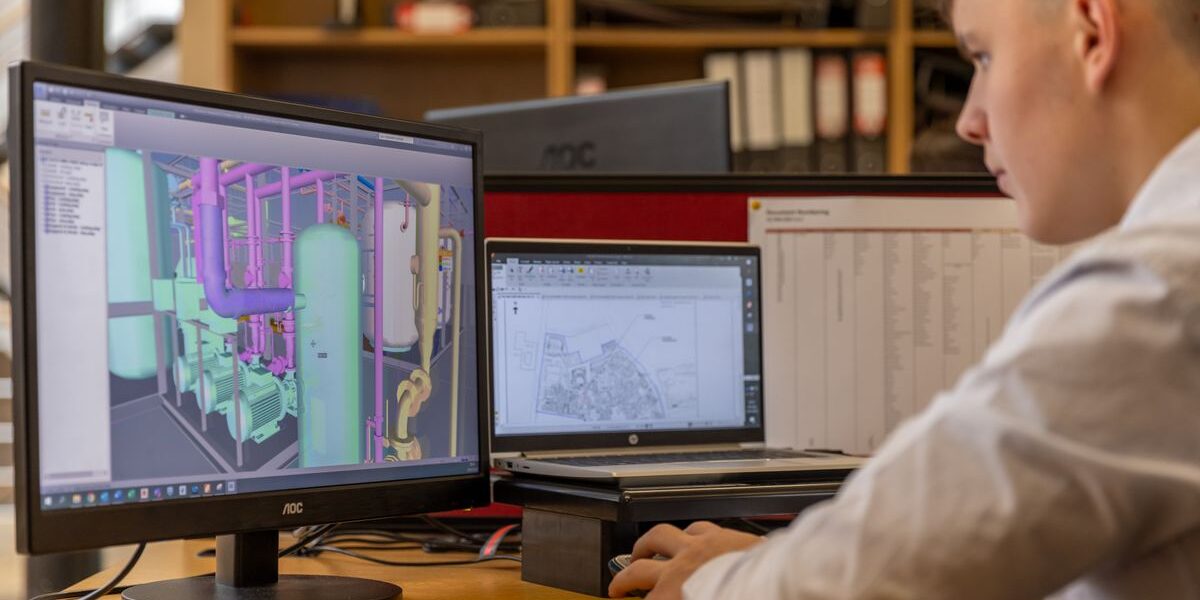
PC replacements across engineering teams almost always raise the same core requirement: ensuring that AutoCAD settings, profiles, and customizations are retained with zero surprises for users. A streamlined, highly reliable workflow is essential for IT organizations managing endpoints at scale. This guide covers a proven, B2B-ready technical approach for preserving AutoCAD configurations during Windows system replacements, grounded in direct operational experience and best practices from enterprise migrations.

Definition: What Does It Mean to Preserve AutoCAD Settings?
Preserving AutoCAD settings during a Windows PC replacement involves capturing user-specific profiles, CUI (custom user interface) files, network resource paths, tool palettes, and custom commands so that a user’s unique AutoCAD environment is replicated on new hardware with no loss of productivity or familiarity. The goal is operational continuity—the workstation behaves as expected from first login.
Direct Technical Summary
The most dependable method of preserving AutoCAD settings in a professional environment is a structured migration that includes:
- Matching versions of AutoCAD on both source and target machines
- Exporting AutoCAD’s custom settings via Autodesk’s Migrate Custom Settings tool
- Supplementing with manual backup of CUI files and user profiles for full coverage
- Restoring these files to the new machine using AutoCAD’s import utilities and manual copy as needed
- Validating all user customizations and network paths in the new environment
For environments managing dozens to thousands of AutoCAD endpoints, leveraging an enterprise-class user profile migration tool such as Tranxition‘s Migration Manager becomes essential. Such solutions capture not only AutoCAD-specific data but also the full Windows user state, covering documents, printer setups, browser data, and other customizations, reducing manual error and post-rollout support tickets.
Key Components of AutoCAD Settings to Preserve
- Profiles (user-specific environment configuration)
- CUI/CUIX files (custom interface layouts, menus, and toolbars)
- Support file search paths (including network and local drives)
- Custom plot styles, templates, script files
- Enterprise resource links (shared standards, tool palettes, and networked content)
Many businesses find that out-of-the-box AutoCAD migration tools cover much of this, but specialist use cases, particularly highly customized environments, demand more granular file handling and validation.
Enterprise-Grade Migration Workflow: Step-by-Step
1. Standardize the AutoCAD Version and Environment
Ensure the new PC has the exact same AutoCAD version, language, and patch level as the previous system. Attempting to restore settings between mismatched versions is the leading cause of migration failures and user configuration corruption.
2. Export Settings from the Source Machine
- Launch AutoCAD on the old PC and locate the Migrate Custom Settings tool from the Start menu
- Export all available settings, enabling the option to include files from network locations if used
- Save the resulting ZIP package to a secure, accessible location (network share preferred for auditability)
3. Manually Back Up CUI Files and Additional Customizations
- Export custom CUI/CUIX files using the CUI command (to ensure complex interface work is not lost)
- Save copies of custom plotter files, linetype files, and networked resource links if applicable
- For legacy versions, consider copying the complete ENU (or locale-specific) support folder

4. Transfer the Migration Package and Custom Files to the New PC
- Prefer managed network or USB transfer with documented chain of custody for traceability
- For mass deployment, prepare a collection script or automation using SCCM, MDT, or Endpoint Manager
5. Import and Validate Settings on the Target Machine
- Install and activate the matching AutoCAD release
- Use the Migrate Custom Settings tool to import the ZIP package
- Manually restore CUI and other non-packaged customizations
- Test all user workflows: verify profiles, tool palettes, plotting, and network support paths
6. Document and Close
- Record any files that required manual restoration for future reference
- Hand off validation results to the user and support team
Risks and Common Pitfalls
- Version mismatches – Attempting migration between different AutoCAD releases almost always causes problems
- Missed custom files – Complex customizations often exist outside what the export package captures. Always check CUI, plotter configs, etc.
- Incorrect path mappings – Changes in drive mapping, printer queues, or network resources can break workflows even after successful import
- Overlooking Windows profile dependencies – AutoCAD may rely on registry, environment, and other profile-level customizations. These can be lost with application-only migration.
Scaling to Large-Scale or Zero-Touch Deployments
Manual exports and imports are sustainable for a handful of endpoints. For larger environments—where engineering user experience is critical and time-to-productivity matters—automation and profile coverage become essential.
This is where Tranxition‘s Migration Manager stands out. The platform is engineered for mass Windows user profile and settings migration, capable of:
- Capturing thousands of customizations across Windows, AutoCAD, and other engineering applications in one operation
- Integrating with tools like SCCM, Intune, MDT, or PDQ for fully automated, zero-touch endpoint migrations
- Operating without agent installation, running securely from network or USB sources for repeatable, auditable workflows
- Providing AES-256 encryption for security, as well as robust logging and error recovery
- Delivering proven reliability even in high-volume, multi-user environments with remote workforce
Enterprise IT teams frequently leverage Migration Manager to preserve not just application-specific data but the entire Windows user state, minimizing the support burden and eliminating downstream troubleshooting, especially during site-wide refreshes or domain consolidations.
Platform Selection: Built-In Tools or Centralized Migration?
| Scenario | Recommended Method | Rationale |
|---|---|---|
| One-off or pilot migration | AutoCAD export/import + manual steps | Simple and quick, but requires technical oversight and user cooperation. |
| High customization, low user count | AutoCAD built-in plus targeted manual backup | Ensures complex customizations are not lost. |
| 10+ users, distributed organization | Profile migration platform (Tranxition) | Prevents omissions, delivers consistent onboarding, and integrates with enterprise management tools. |
| Remote workforce or zero-touch rollout | Automated tool (Tranxition Migration Manager) | Improves reliability, eliminates shadow IT workarounds, and supports rapid recovery. |
Best Practices for IT Teams
- Document AutoCAD toolchains and dependencies unique to your environment before migration begins
- Test export/import flows in a lab before rolling out to end users
- Ensure consistency in AutoCAD licensing and patch levels to avoid restore failures
- Always automate repeatable tasks—manual migration is error prone at scale
- Integrate migration profiles with endpoint management workflows for auditability and speed
- After rollout, have users validate critical workflows (drawing open, plotting, tool palettes)
- Maintain a knowledge base of paths, files, and caveats for future refresh cycles
For deep operational strategies around reducing migration fallout, see our guide on How to Measure and Reduce Migration Fallout in Enterprise PC Rollouts.
Validation Checklist After Migration
- Open AutoCAD, confirm correct environment/profile is loaded
- Test ribbon customizations and toolbars
- Check tool palettes and any automation scripts
- Verify plotting/printing, network drive access, and support file paths
- If domain has changed, validate all external links and resource calls
- Perform at least one real-world drawing workflow from open to plot

FAQ: Preserving AutoCAD Settings During Windows PC Replacement
- Can I use AutoCAD’s built-in tools for all settings migration?
- AutoCAD’s native migration utilities handle most profile and customization transfers between exact product versions. For complex or highly customized environments, supplement with manual backups of CUI files and validate after import.
- What typically gets missed in an AutoCAD settings migration?
- Custom CUI files, plotter/printer definitions, network-dependent resources, and unique workflow scripts are commonly outside the default export. Always check these items specifically.
- How do I migrate multiple users efficiently?
- Manual methods do not scale well. For large estates, use an enterprise migration platform like Tranxition Migration Manager to automate profile capture and restoration alongside application settings.
- Will settings transfer between different AutoCAD versions?
- Settings migration is only supported between the same version, language, and patch level. Do not migrate across releases—this often leads to errors or user confusion.
- Can migration be zero-touch for end users?
- Yes, with a tool such as Tranxition’s Migration Manager, IT can script migrations to be entirely automated and hands-off, integrating with endpoint management solutions.
- What about cloud-stored or redirected paths?
- These require validation and, if necessary, repointing after the new system is live. Migration platforms can capture standard file locations, but unique network/cloud setups should be checked post-migration.
Conclusion
Protecting AutoCAD user experience during Windows PC replacements is a non-negotiable for any engineering-driven business. The right approach combines Autodesk’s native tools for direct profile export/import with robust enterprise migration workflow and validation. For organizations moving from pilot to scaled rollout or managing complex endpoint environments, leveraging an expert platform such as Tranxition’s Migration Manager delivers proven, repeatable, low-friction results, dramatically reducing migration headaches and post-deployment support load across the fleet. If you are ready to lower risk and raise user satisfaction during your next device refresh cycle, we invite you to learn more about our migration solutions or request a trial tailored to your requirements.